
Manage services and prices
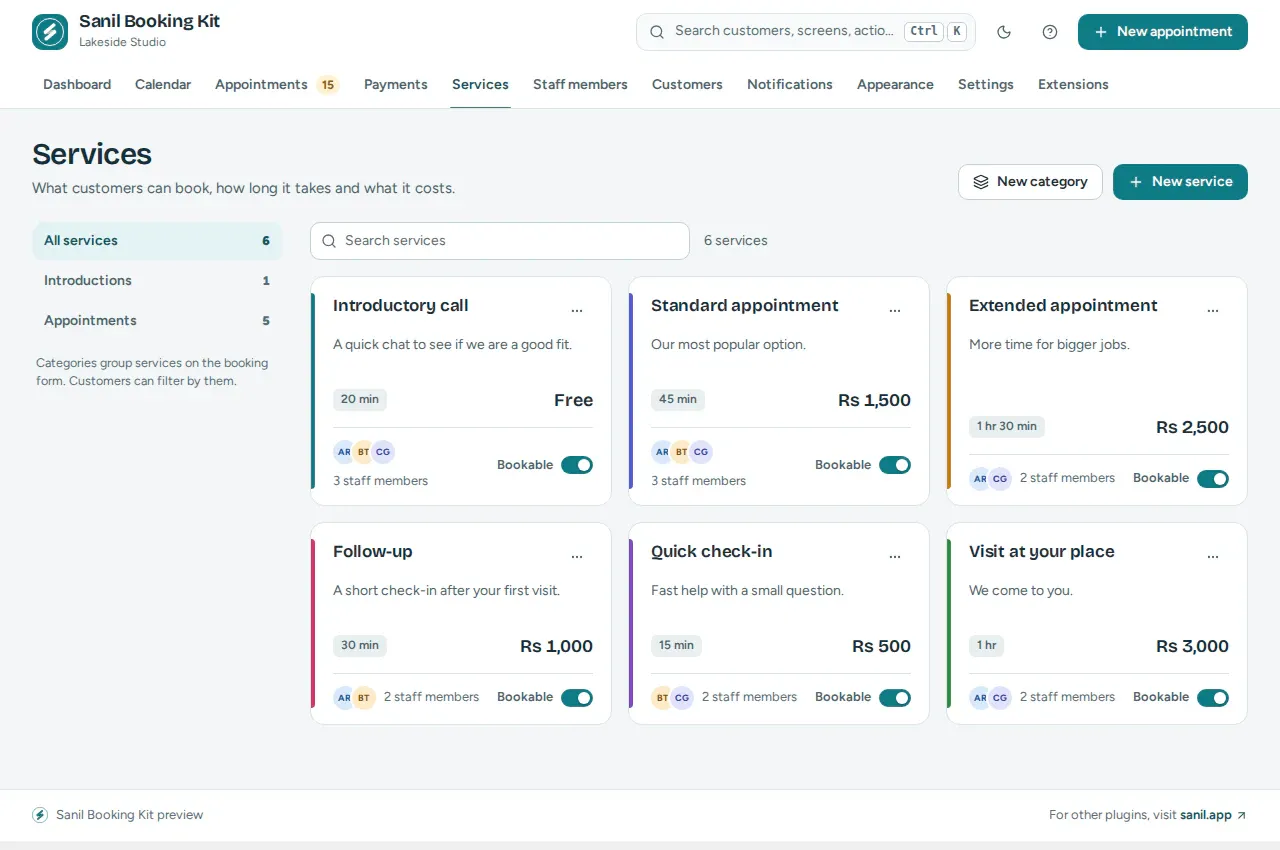
Services define what customers can book, how long it takes and what it costs. Your business type may call them treatments, sessions or another name.
Add or edit a service
- Open your services screen. Add a new service or edit an existing one.
- Fill in Basics. Enter a name, description and optional photo. Choose a category and calendar colour.
- Set Time and price. Enter the duration, price and any Buffer before or Buffer after. Buffers reserve preparation or clean-up time around the appointment.
- Assign staff. Choose the people who offer this service. A service needs eligible staff before customers can book it.
- Save the service. Review it on the public booking page.
Categories group related services and let customers filter the form. Add them from the services screen with New category.
Choose online visibility
Under Booking rules → Online booking, choose Visible on the form, Only through a private link, or Hidden (staff can still book).
For a private service, use its Private booking link to share it with the intended customers. A duplicated service starts inactive. Edit and activate it before offering it for booking.
Understand prices and changes
Customers pay on arrival by default. With an eligible payment gateway enabled, use Time and price → Collect online (%) to collect a deposit or the full price. See Set up online payments.
Use Show price on the form to control the service’s displayed price, or change the price display across the form in Appearance.
A staff member can have a different price for a service on their profile. Changes to a service apply to new bookings; existing appointments keep their saved details.
Continue with Add extras and booking questions.