
Set up emails and reminders
Open Notifications to choose which emails customers and your team receive. The core plugin sends email notifications and reminders.
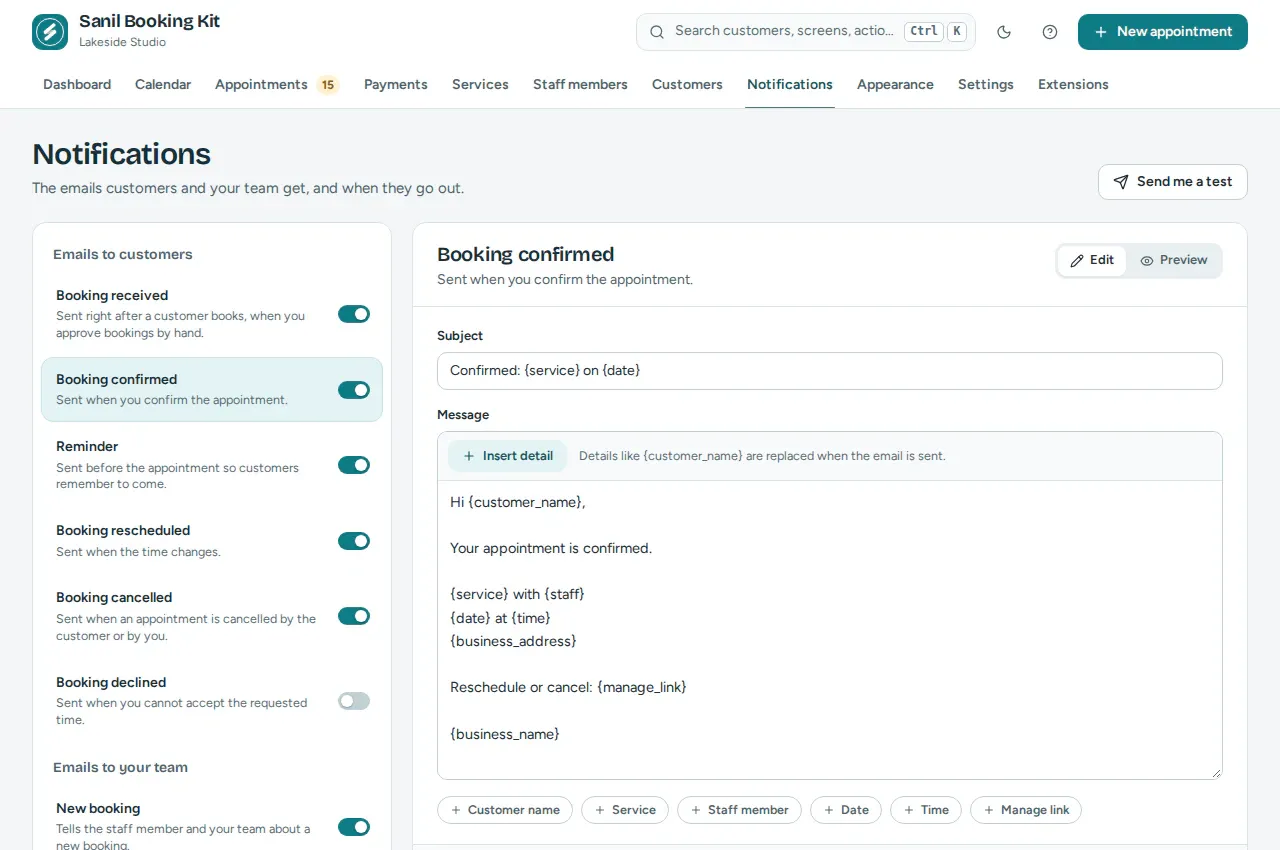
Edit and test a template
- Choose an email. Find it under the customer or team email group and switch it on if it should be sent.
- Edit the wording. Open Edit, change Subject and Message, and use Insert detail to add the booking information that should fill in automatically.
- Preview it. Sample details show how the email will read; they are replaced by real details when sent for a booking.
- Save and test. Click Save email, then use Send test to check delivery to the email address on your WordPress account.
Restore original brings back the original wording. A switched-off template sends nothing until enabled.
Choose reminder timing
Select the Reminder template and use Send the reminder to choose two hours, four hours, one day or two days before, or Do not send reminders. The default is one day before.
When someone books inside the selected reminder window, they receive the enabled booking emails without a late reminder.
Check addresses and delivery
Set a valid business email in Settings → General to receive replies. Check each staff profile’s email for booking alerts. Team notifications use the configured team address when present, otherwise the business email or WordPress admin email, plus the assigned staff member’s address.
Emails use WordPress mail delivery. Reminders run through WP-Cron, so quiet sites need a reliable scheduled cron job. See Emails or reminders are missing.