
Reschedule or cancel a booking
Your team can change appointments from the admin. Customers can use the private link in their booking confirmation when online changes are allowed.
Change a booking as a team member
Open the appointment from the calendar or appointments list. Choose Reschedule, select a new date and available time, then confirm the move. Use the cancellation action to cancel the appointment.
Check the appointment history for the change and email result. If email delivery fails, contact the customer directly. To refund an online payment after cancellation, issue the refund in your gateway’s dashboard and check it in Payments.
Let customers change their own booking
In Settings → Booking rules, turn on Customers can reschedule or cancel and set Last chance to change. Click Save settings.
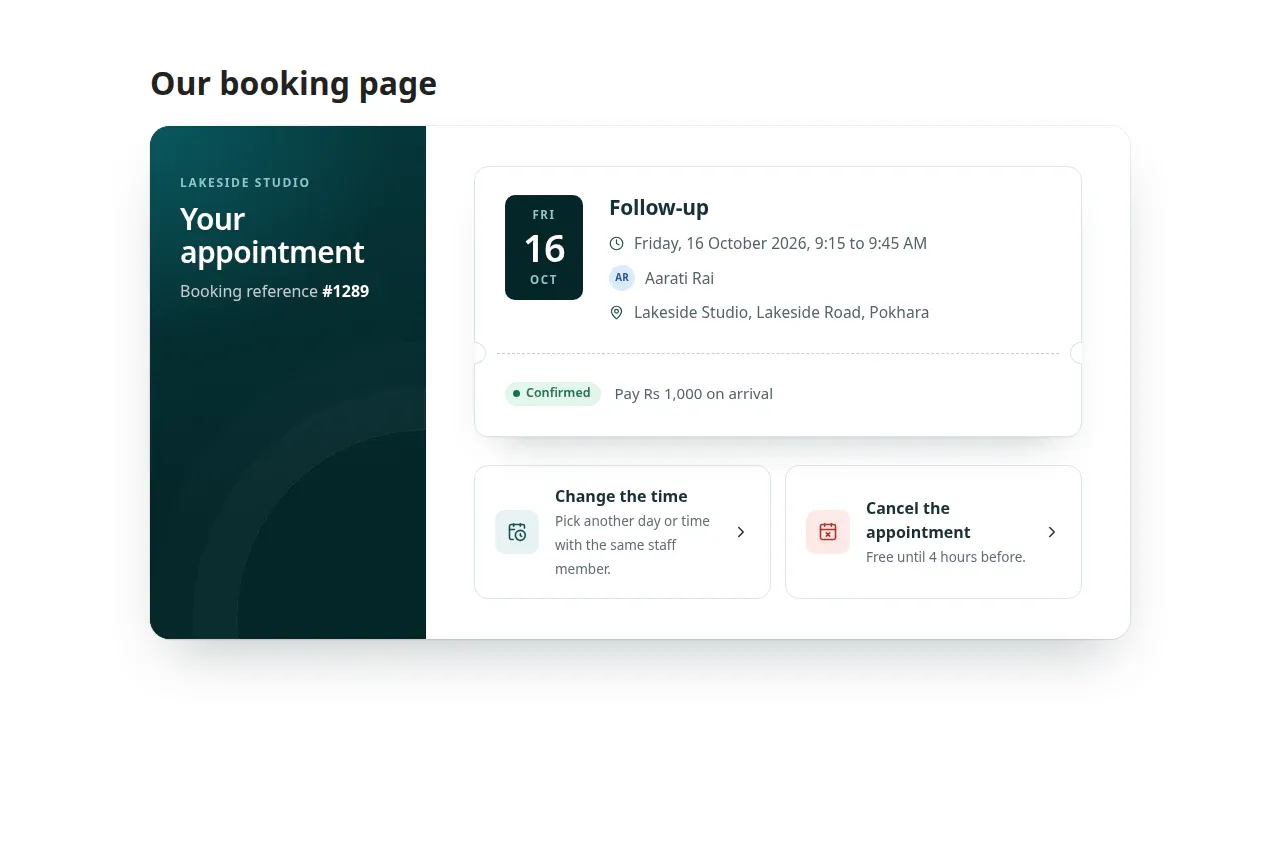
The customer opens their confirmation link without creating an account. They can use Change the time to pick another date or time with the same person, or cancel and optionally give a reason.
The change options depend on the appointment status, your settings and the deadline. After the deadline the customer is asked to contact your business.
Keep manage links working
Keep the original booking page published with its booking form. A manage link opens that page with a private booking token in the address. Treat that link as private because it allows access to the booking.
If the customer cannot open or change a booking, see Booking link will not work.