
Add the booking form
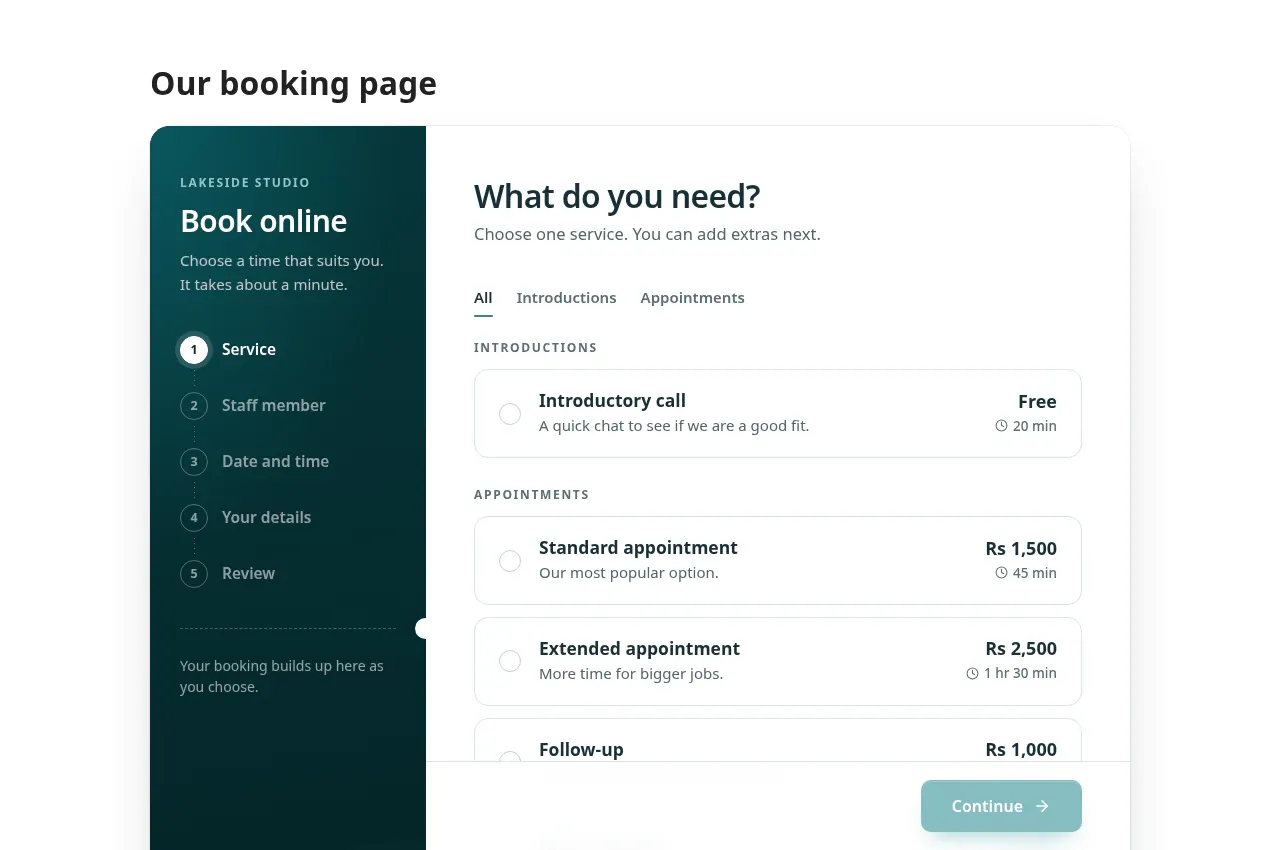
Customers can book from any WordPress page where you place the booking form. You can use the block editor or a shortcode.
Use the Booking Form block
- Open a page. Create a booking page or edit an existing one in WordPress.
- Insert the block. Search the block inserter for Booking Form and add it to the page.
- Publish the page. Publish or update, then open the public page. The editor shows a placeholder. The working form appears on the published page.
Use a shortcode instead
Add a WordPress Shortcode block containing [sanil_booking_kit]. In a page builder, use its shortcode element with the same value, then save and open the public page.
Use one form per page and keep the page published. Customers return to the booking page to view or change their appointment.
Test a real booking
Choose a service, a person or anyone available, a date and time, then enter your own test contact details. Review and submit the booking. Check that it appears in the admin and that the expected email arrives.
If the service requires online payment, complete checkout before checking for the appointment. Use the gateway’s sandbox for testing. See Set up online payments.
If the service requires manual approval, confirm the appointment in the admin after it appears. Manage appointments explains the next step.
If services or times are missing, see No available booking times. If the form itself is missing, see Booking form is not showing.